How to record your screen
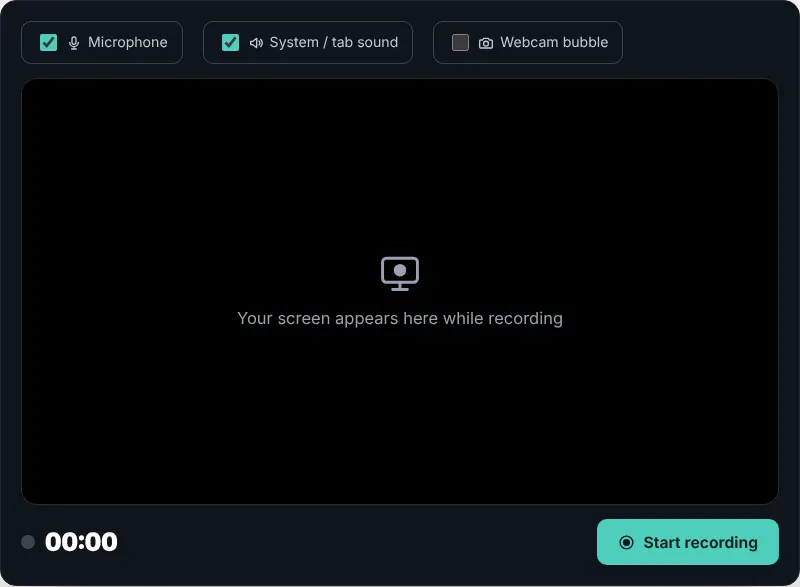
- Choose what to include: microphone, system sound and webcam bubble.
- Press Start recording. Your browser asks what to share: the entire screen, one window or a tab. To record sound from a video or a game, share a tab or the entire screen and tick "Share audio".
- A three-second countdown starts the recording. Use Pause if you need a break.
- Press Stop (or "Stop sharing" in the browser bar). Watch the recording and download it.
What makes this recorder different
- No watermark and no time limit. Many free recorders stamp a logo on your video or stop after 5 or 10 minutes.
- Nothing is uploaded. The video is made in your browser and stays on your computer.
- Webcam bubble. Your camera appears in a round frame in the corner, perfect for tutorials and presentations.
- MP4 where your browser supports it, otherwise WebM. Need a smaller file? Our video compressor shrinks it in the same browser.
Tips for a good screen recording
- Close notifications (Windows: Focus assist) so they do not appear in the video.
- Record one window instead of the full screen to keep private things out.
- For tutorials, increase the zoom of your browser or app so text stays readable on small screens.
- Long recordings use memory. For more than an hour, record in parts.
Works on
Chrome, Edge, Firefox and Opera on Windows, macOS, Linux and ChromeOS. Safari on Mac records the screen but not system sound. Phones do not allow screen recording from a website; use the screen recorder built into Android or iOS.
Frequently asked questions
Is the screen recorder really free with no watermark?
Yes. No watermark, no time limit and no account. Adverts on the page pay for the site.
Can it record system sound?
Yes, in Chrome and Edge. When choosing what to share, pick a tab or the entire screen and tick Share audio. Windows can share system audio from the entire screen; macOS only from a tab.
Where is my recording saved?
Nowhere until you press Download. It is kept in your browser's memory, never uploaded.
Can I record my screen on a phone?
Browsers on phones do not allow it. Use the built-in recorder: swipe down to quick settings on Android, or Control Centre on iPhone.