How to generate subtitles for a video
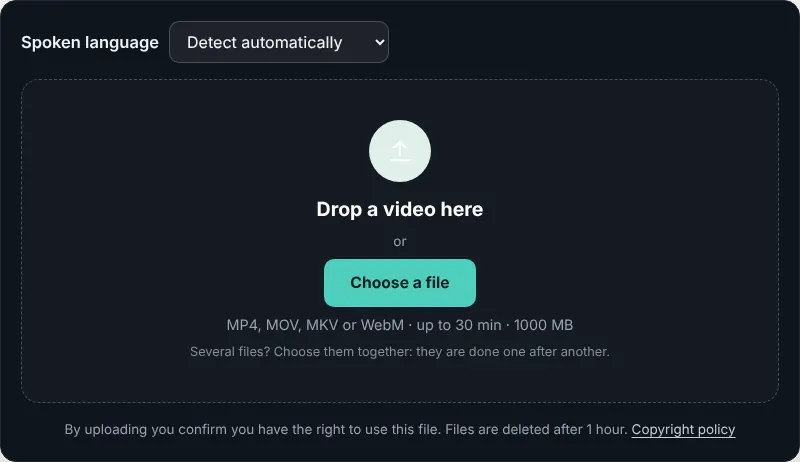
- Upload your video (MP4, MOV, MKV or WebM, up to 30 minutes and 1000 MB) and choose the spoken language.
- The AI transcribes it on our servers and times every line to the speech.
- Play the video with the new captions, correct any line, and download the subtitles as SRT or VTT.
Want the captions drawn into the picture instead of a separate file? Use add subtitles to video.
Subtitles that are easy to read
Automatic captions often come as long blocks that fill half the screen or flash past too quickly. We use the time of every word to build lines that follow the rules professional subtitlers use: at most two lines of about 42 characters, a new caption at every pause and sentence end, and no caption longer than about seven seconds.
SRT or VTT?
- SRT is the most widely supported format. Use it for YouTube, Facebook, LinkedIn, Vimeo, Premiere Pro, DaVinci Resolve, Final Cut Pro (import as captions), CapCut and VLC.
- VTT (WebVTT) is the format for web video players and HTML5
<track>elements, and is also accepted by YouTube and Vimeo.
Both files are plain text, so you can open them in any text editor later. The SRT file is saved as UTF-8, so accents and non-Latin scripts display correctly.
Uploading subtitles to YouTube
In YouTube Studio, open the video, choose Subtitles, add the language, choose Upload file, pick "With timing" and select the SRT file. Uploaded subtitles are more accurate than YouTube's automatic captions, they can be indexed by search, and viewers can turn them on and off.
How the AI speech to text works
The transcript is made by Whisper, an open speech recognition model released by OpenAI under the MIT licence, running on our own servers. Whisper was trained on hundreds of thousands of hours of speech in many languages, so it copes with accents, background noise and fast speakers far better than the speech recognition built into phones and office software a few years ago. It also adds punctuation and capital letters, so the text reads like writing rather than a stream of words.
Before the model listens, a voice detector skips long silences and music-only parts, which keeps the timing accurate and stops the AI from inventing words where nobody speaks. The model also records the time of every word, and we use those times to cut the text into lines that are short enough for subtitles: at most two lines of 42 characters and about seven seconds on screen.
Getting the most accurate transcript
- Choose the language if you know it. Detection is reliable on clear speech, but a short clip that starts with music or a greeting in another language can be detected wrongly.
- Use the cleanest recording you have. One speaker close to the microphone gives the best result. If the recording is very noisy, run it through the noise remover first.
- Names, brands and jargon are the most common mistakes, because the AI writes what it hears. Search for them in the transcript and correct them once before downloading.
- People talking over each other are hard for any transcription service. The words are usually there, but in one line.
Frequently asked questions
Are the subtitles burned into the video?
No, this tool gives you subtitle files that viewers can switch on and off. To draw the captions permanently into the picture, for Instagram, TikTok or WhatsApp, use add subtitles to video.
Can I make English subtitles for a video in another language?
Yes, with translate video to English. It listens in the original language and writes English subtitles.
Which languages does it understand?
About 100, including English, Spanish, Portuguese, German, French, Italian, Greek, Arabic, Hindi, Chinese, Japanese, Russian and Turkish. Accuracy is highest for widely spoken languages and lower for languages with little training data. Leave "Detect automatically" on, or pick the language yourself.
Is there a watermark?
No. The subtitle files contain only your captions.
Is it really free?
Yes. There is no account, no watermark and no paid tier. The site is paid for by the adverts you see on the page. To keep it fair for everyone there is a daily limit of 10 files per visitor.
What happens to my recording?
It is transcribed on our own servers and deleted automatically, together with the transcript files, 1 hour after you upload it. Nobody listens to it, we do not share it, and we never use it to train AI models. Playback in the editor uses the copy on your own device.
Can I transcribe other people?
Only upload recordings you are allowed to use, for example your own meetings, interviews where the other person agreed to be recorded, or lectures you may record. The rules on recording conversations differ between countries.