How to repair a broken video
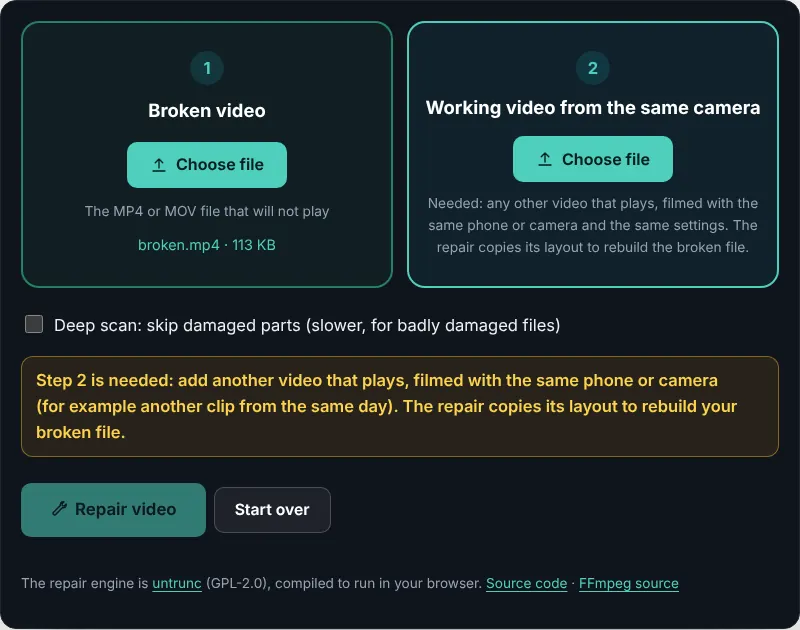
- Add the broken video: the MP4 or MOV file that will not open, shows an error, or plays with no picture.
- Add a working video recorded with the same phone or camera, in the same mode: same resolution, frame rate and settings (for example 4K 30 fps, HDR on). A few seconds long is enough.
- Press Repair video. When it is done, play the preview and download the repaired file.
The working video is the key. A camera writes the video frames as it records and only writes the index at the end, the part that tells a player where every frame is and how to decode it. When the battery dies, the card is pulled out or the app crashes, that index is missing. The fixer reads the settings from your working video, finds every video and audio frame inside the broken file, and builds a new index around them.
Why an MP4 stops playing
An MP4 file has two main parts: mdat, which holds the actual video and audio frames, and moov, the index that says where every frame starts, how long it lasts and which codec it uses. Most cameras and phones write moov last, when you press stop. If recording ends any other way, the file has all its frames but no moov, and players give up. Typical messages are "moov atom not found", "Invalid data found when processing input", "This file isn't playable (0xc00d36c4)" or a length of 0:00.
The fixer takes the moov layout from your working MP4, walks through the mdat of the broken file frame by frame, and writes a new moov for it. The frames are copied as they are, so there is no quality loss and no re-encoding.
Common MP4 cases
- GoPro: files that stopped when the battery ran out often have a matching .LRV low-res file. Repair the .MP4 with another clip from the same GoPro in the same mode.
- DJI drones and Osmo: a crash or a lost connection leaves a broken MP4 on the card. Use a working clip at the same resolution and frame rate.
- Android phones: a phone call, low storage or a crash can stop the camera app. Record a short clip in the same mode as your working video.
- Screen recordings and OBS: recordings saved as MP4 break if the program closes. Record a short test with the same settings.
Private, free and no size limit
Video repair programs usually let you preview the result for free and then charge for the save. This one is free, with no watermark and no size limit, because it runs on your own computer or phone. Your videos are never uploaded: they are read where they are, and the repaired copy is written to your browser's private storage until you download it.
Frequently asked questions
Is the video uploaded?
No. The repair runs in your browser, on your own device. Nothing is sent to a server, so private videos stay private and there is no size limit.
Why do I need a second video?
The broken file has lost its index, which holds the codec settings. A working video from the same device, recorded in the same mode, has the same settings, so the fixer can read them from it.
Is it really free?
Yes. No sign-up, no watermark and no size limit. The site is paid for by the ads on the page.
What if the repair finds nothing?
Check that the working video was recorded with the same device and the same settings, then tick Deep scan and try again. If the broken file is all zeros (it happens when a card is badly damaged), there is nothing left to recover.
Does repairing lower the quality?
No. The video and audio frames are copied exactly as they are. Only the index is rebuilt.
My MP4 plays but has no sound or skips. Will this help?
It is made for files that will not play at all. A file that plays but skips usually has damaged frames, which a repair cannot bring back.