How it works
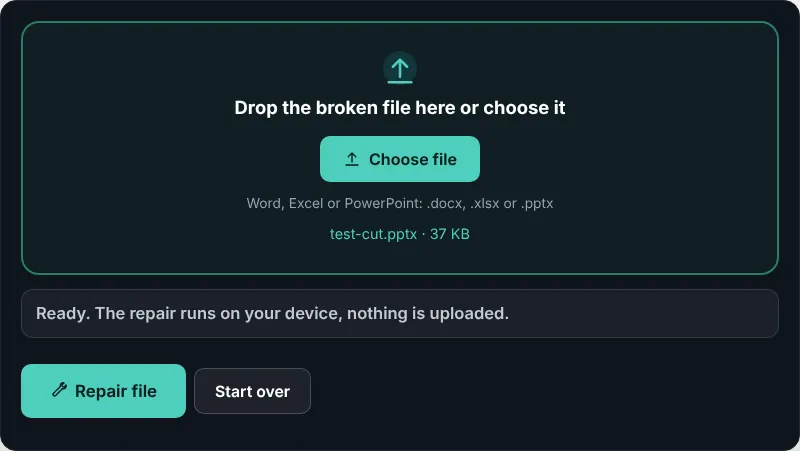
- Add the file that will not open. It can be a Word document (.docx), an Excel workbook (.xlsx) or a PowerPoint presentation (.pptx).
- Press Repair file. The tool finds every part inside the file, unpacks each one as far as it goes, and cuts damaged parts back to the last complete paragraph, row or slide.
- Download the repaired copy and open it. If Office still offers to repair it, click Yes: it can now finish the job.
A .docx, .xlsx or .pptx file is a ZIP archive full of small XML files: one for the text, one per sheet or slide, plus styles, pictures and an index at the very end. When a save is interrupted, a download stops early or a USB stick is pulled out, the index at the end is usually what goes missing, and Office gives up even though almost all of the content is still there. This tool does not need that index: it reads every part from its own header instead.
Errors it fixes
- "PowerPoint found a problem with content in presentation.pptx. PowerPoint can attempt to repair the presentation." and the repair fails.
- "PowerPoint can't read presentation.pptx."
- "Sorry, PowerPoint can't read" or a file that opens with blank slides.
- A presentation that was cut short by a crash, a full USB stick or an interrupted copy or download.
What you get back
Every slide that can be found, with its text boxes, shapes, tables, pictures, notes and layout. A slide that is too damaged to read is left out, and the rest of the presentation is kept in order. Embedded videos and sounds come back when their parts were not damaged; big media files are often the part that was cut off, so check them first.
What it cannot fix
- Old formats: .doc, .xls and .ppt files from Office 2003 and earlier are built differently. Open them in LibreOffice, which often reads damaged old files, and save as .docx, .xlsx or .pptx.
- Files that are all zeros: when a disk or card loses the data itself, a file can keep its size but be empty inside. There is nothing left to recover.
- Password-protected files: an encrypted file has no readable parts. It needs the password, not a repair.
- Content that was never saved: a file only holds what was saved. For Office's own AutoRecover copies, see the tips below.
Before you repair: three quick checks
- AutoRecover: in Word, Excel or PowerPoint, open File, Info, Manage Document, Recover Unsaved (Windows) or look in Finder under Library, Containers for the app's AutoRecovery folder (Mac). There may be a newer copy.
- OneDrive, SharePoint or Google Drive: right-click the file and choose Version history. An older version from before the damage is often there.
- Work on a copy: keep the original file as it is. This tool never changes it, but other programs might.
Free, private and no upload
File repair programs usually show you a preview for free and then ask for money to save the result. Here the save is free, with no account and no size limit, because the repair runs in your own browser. Your file is never uploaded: it is read on your device, and the repaired copy is made there too. That matters for contracts, payslips, accounts and family photos.
Frequently asked questions
Is my file uploaded?
No. The repair runs in your browser, on your own device. Nothing is sent to a server, so private documents stay private.
Is it really free?
Yes. No sign-up, no watermark and no paid save. The site is paid for by the ads on the page.
Will I get everything back?
Usually almost everything. When the end of the file is missing, the content up to the damage is kept. When a part in the middle is damaged, it is cut back to the last complete paragraph, row or slide, and the rest of the file is kept.
Office still says the file needs repair. What now?
Click Yes. The repaired copy is built so that Office's own repair can finish the job, for example rebuilding the list of formulas to recalculate.
Some slides are missing. Can I get them back?
Only if their content is still in the file. Missing slides were usually in the part that was cut off or overwritten. Try the ZIP repair on a renamed copy to see which pictures and media are still inside.