How to compare two spreadsheets
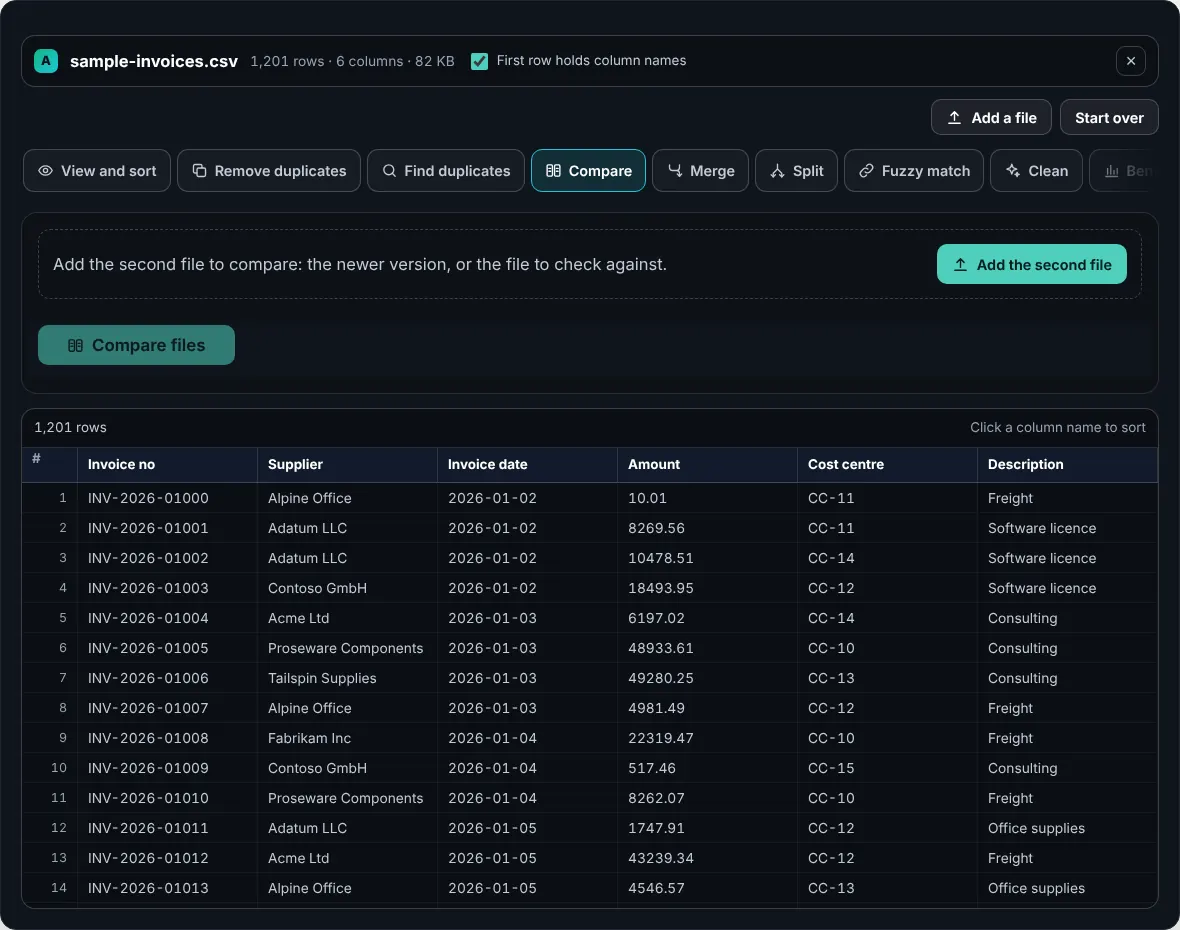
- Drop both files on the page: the old version first, then the new one. You can also add the second file later with Add a file.
- Under Match rows by, choose a key column such as an ID, a product code, an invoice number or an email address. The tool picks a likely key for you.
- Choose what counts as the same: 10 and 10.00, upper and lower case, extra spaces.
- Press Compare files and look through the tabs: Changed rows, Only in first file, Only in second file and Unchanged rows.
In Changed rows, the changed cells are highlighted and the first column spells out every change, such as Price: 10.50 → 12.00. The Excel download keeps the highlighting and adds a summary sheet, ready to send to a colleague or to file as evidence.
Why a key column matters
Comparing row 1 with row 1 only works when nothing was inserted, deleted or sorted. In real files something always moved. With a key column the tool finds each record wherever it is in the other file, so one inserted row does not turn the rest of the sheet into "changes". If your files have no key, choose Row position.
Columns are matched by their names, in any order, so a column that moved from C to F is still compared correctly. Columns that exist in only one file are listed in the summary.
Common uses
- Price lists and product catalogues: which prices changed since the last version.
- Bank and ledger reconciliation: which transactions are in the bank export but not in the books, and the other way round.
- Customer, employee or supplier lists: who was added, who left and whose details changed.
- Data migrations: check that a system export after the move holds exactly the same records as before.
Excel has no built-in compare for two workbooks outside the Inquire add-in of some business editions, and formulas such as VLOOKUP or XLOOKUP only find missing rows, not changed cells. Excel stops at 1,048,576 rows and 16,384 columns per sheet. This workbench has no such limit: it reads files in a background thread, keeps repeated values only once in memory, and scrolls through millions of rows smoothly. The real limit is your device's memory; a computer with 8 GB handles files of several million rows.
Where your file goes
Your spreadsheet is opened by your own browser and processed on your own computer or phone. It is never uploaded: there is no server that could see your customers, suppliers, salaries or payments, nothing to delete afterwards, and you can even disconnect from the internet once the page has loaded. That makes it safe for client files, personal data under the GDPR and audit evidence, which you should never send to an online converter that uploads them.
Frequently asked questions
Is it free?
Yes. No account, no row limit, no watermark and no trial. The site is paid for by the adverts on the page.
Is my file uploaded?
No. The file is read and processed by your browser on your own device. Nothing is sent to any server, so it is safe for confidential data.
Do the files need the same column order?
No. Columns are matched by their names, so the order does not matter. Columns that are only in one file are listed separately.
Can I compare a CSV with an Excel file?
Yes. Any two supported files can be compared, for example a CSV export from one system with an Excel workbook from another.
What if a key appears twice?
The first copy in one file is matched with the first copy in the other, the second with the second, and the summary tells you how many keys repeat.
Can I compare two sheets of the same workbook?
Yes. Add the workbook twice and choose a different sheet on each file card.