How to convert a PDF to Excel
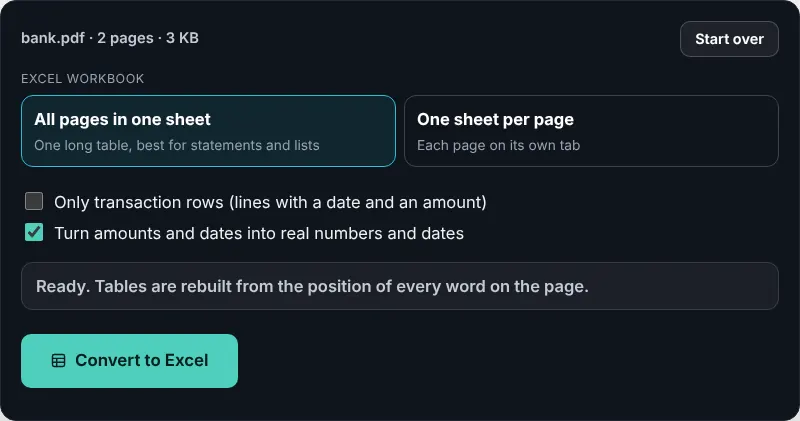
- Drop your PDF on the page or choose it.
- Choose All pages in one sheet for one long table, or One sheet per page to keep each page on its own tab.
- Press Convert to Excel, check the preview of the first rows, and download the XLSX file for Excel, Google Sheets, LibreOffice or Numbers, or a CSV file.
How the table is rebuilt
A PDF does not store tables. It only stores where each word is drawn on the page. The converter reads the position of every word, groups words that sit on the same line into rows, and finds the columns from the gaps that run down the page. That works for invoices, price lists, reports, timetables, exported accounts and most other tables made by a computer.
- Numbers become real numbers. "1,234.56", "1.234,56", "(45.00)" and "45.00-" all become values Excel can add up, with negative amounts kept negative.
- Dates become real dates when the PDF uses a numeric format such as 31/10/2026, so you can sort and filter by date.
- Text stays text. Codes with leading zeros, such as 00123, are not turned into numbers.
Tips for a clean spreadsheet
- Untick "Turn amounts and dates into real numbers and dates" if you need every cell exactly as it appears in the PDF.
- Use "Only transaction rows" for bank and card statements: it keeps lines with a date and an amount and joins descriptions that wrap onto a second line. For statements there is also a dedicated bank statement converter.
- Merged headings that span several columns land in the first column they cover. Delete or move them in Excel after downloading.
Scanned PDFs
This converter reads the text of a digital PDF: one where you can select the words in your PDF reader. A scan or a photo of a page has no text yet, so run it through OCR PDF first: it adds the text on your device, and the searchable PDF then converts here like any other. Most statements, invoices and reports downloaded from a website or exported from software are digital already.
Where your file goes
Your files are processed by your own browser, on your own device. They are never uploaded, so there is no size limit, no daily limit and no watermark, and private documents stay private. Many online converters upload your PDF to their servers, which is a poor fit for payslips, invoices and statements; this one reads it in your own browser.
Compared with iLovePDF
| What you get | PC Multiverse | iLovePDF |
|---|---|---|
| Price | Free | Free Basic plan, then Premium at $9 a month (or $60 a year) |
| Free limits | No daily limit, no file count limit | “Limited document processing” on the free plan |
| File size | Limited only by your device's memory | For example 100 MB per Merge task, 200 MB for Compress, 25 MB for PDF to JPG |
Because everything runs in your browser, very large PDFs depend on how much memory your device has.
iLovePDF details are from its public pricing page, read on 21 November 2026, and may have changed since. iLovePDF is a trademark of its owner; we are not affiliated with it.
Frequently asked questions
Is this PDF to Excel converter free?
Yes. There is no sign-up, no watermark, no page limit and no daily limit.
Is my PDF uploaded?
No. The PDF is read and the spreadsheet is made in your browser, on your own device.
Does it work with scanned PDFs?
Yes, in two steps: make the scan searchable with OCR PDF, then convert the searchable PDF here. Both run in your browser.
Will the numbers add up in Excel?
Yes. Amounts are stored as numbers, so SUM, sorting and filters work straight away. Untick the option if you need the text exactly as it looks.
XLSX or CSV?
XLSX opens in Excel, Google Sheets, LibreOffice and Numbers with column widths, number formats and dates. CSV is plain text for importing into accounting software and databases.