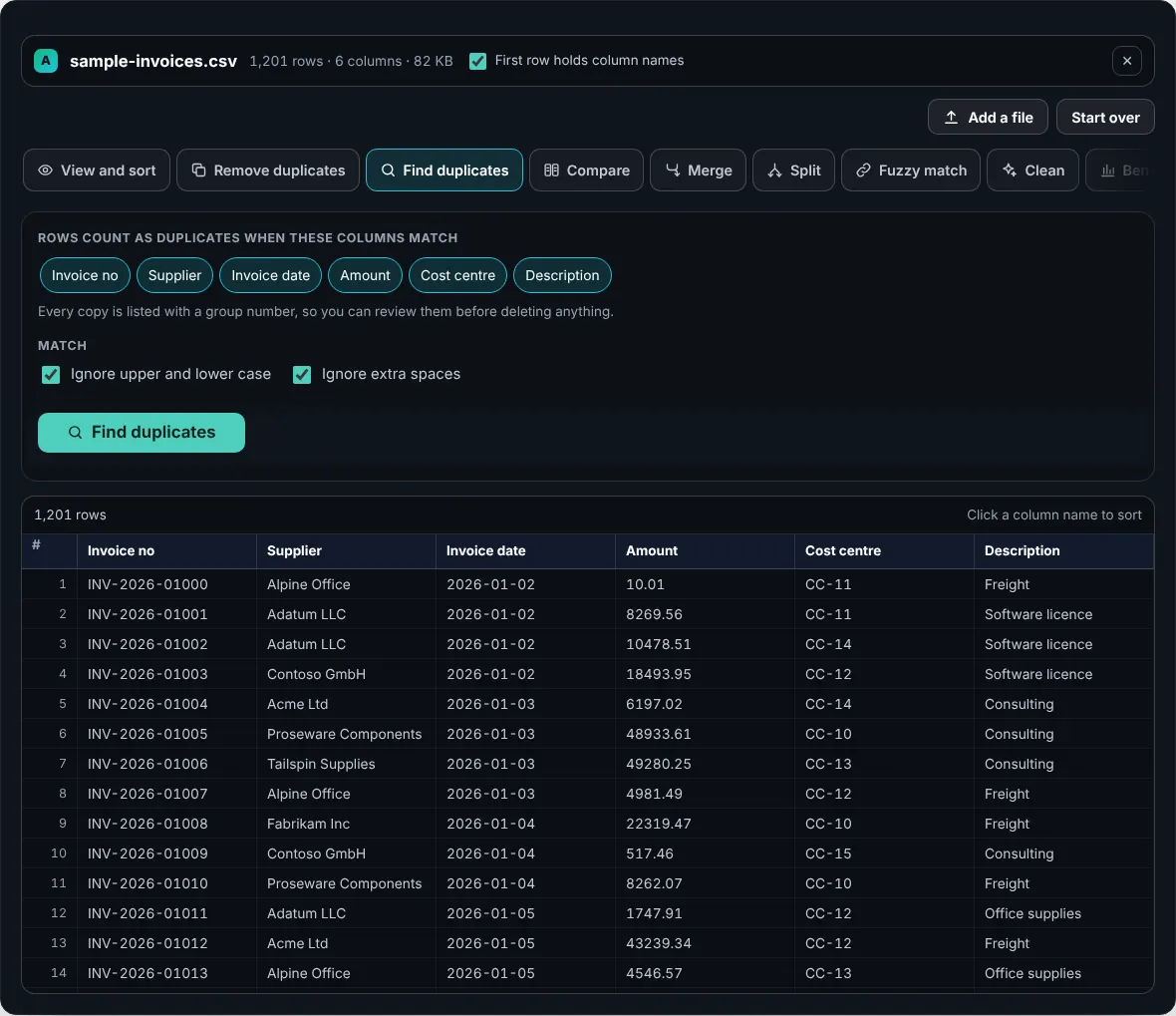
How to find duplicates
- Drop your Excel or CSV file on the page.
- Tick the columns that must match. For duplicate customers that might be the email column; for duplicate orders, the order number.
- Press Find duplicates. The Duplicates tab lists every row that has at least one copy, grouped and numbered, with the number of copies.
- Download the Excel workbook: the duplicates, every row of the file marked First copy or Duplicate in colour, and a summary sheet.
Why list duplicates instead of deleting them
Deleting is fast, but it hides the reason the duplicates exist. A customer entered twice may have two different addresses; an invoice booked twice may have been paid twice. Reviewing the groups first lets you decide which row is right, merge information, or follow up with the person who entered them. When you are sure, the remove duplicates tool does the deleting.
What counts as a duplicate
Rows are compared on the columns you tick. Upper and lower case and spaces at the start or end are ignored by default, so "INV-1001" and "inv-1001 " are found as copies; untick these options for a strict comparison. Empty values never match each other, so blank cells do not form a huge false group.
Excel's conditional formatting (Home, Conditional Formatting, Duplicate Values) can highlight repeated values in one column, but it gets slow on large sheets, cannot match on several columns together, and gives you no list to work from. Excel stops at 1,048,576 rows and 16,384 columns per sheet. This workbench has no such limit: it reads files in a background thread, keeps repeated values only once in memory, and scrolls through millions of rows smoothly. The real limit is your device's memory; a computer with 8 GB handles files of several million rows.
For accountants and auditors
Duplicate records are a classic sign of control weaknesses: duplicate supplier master records, duplicate employees in a payroll file, the same invoice booked twice. For accounts payable, the dedicated duplicate payment checker also finds payments with the same amount within a few days, or invoice numbers one typing slip apart.
Where your file goes
Your spreadsheet is opened by your own browser and processed on your own computer or phone. It is never uploaded: there is no server that could see your customers, suppliers, salaries or payments, nothing to delete afterwards, and you can even disconnect from the internet once the page has loaded. That makes it safe for client files, personal data under the GDPR and audit evidence, which you should never send to an online converter that uploads them.
Frequently asked questions
Is it free?
Yes. No account, no row limit, no watermark and no trial. The site is paid for by the adverts on the page.
Is my file uploaded?
No. The file is read and processed by your browser on your own device. Nothing is sent to any server, so it is safe for confidential data.
Can I find duplicates across two files?
Yes: use Merge to stack the two files with a column showing the file name, then find duplicates on the merged data. Or use Compare to see which rows are in both files.
Can it find duplicates that are spelled differently?
Use the fuzzy match tool: it groups names such as Acme Ltd, ACME Limited and Acme Ltd. and suggests one spelling.
How are duplicates shown in the Excel download?
Duplicates are coloured red and first copies yellow in the sheet with all rows, so you can filter by the Duplicate column.